
Release 26.01 is now available for your robot! We’ve been hard at work developing new features and enhancements to optimize your ANYmal experience. Here, you’ll find detailed information about what’s new in this release. You can find the technical release notes here.
New features – ANYbotics Field Operator app
New features – Data Navigator
- Configurable point of interest views
- Alert configuration
- Enhanced thermal inspection capabilities
- Asset structure panel
- Reorganized settings
- Additional Data Navigator updates in this release
Introducing
Improvements
- Temperature management for drive protection
- Enhanced thermal and acoustic imaging
- Increased camera and sensor reliability
- Enhanced locomotion and navigation
Changes
Deprecation notice
On-robot-generated PDF reports will be deprecated in the next release.
New features – ANYbotics Field Operator app
High-fidelity maps
This release introduces high-fidelity maps, a major upgrade to how maps are visualized and interacted with in the ANYbotics Field Operator app. HiFi maps display your site as a detailed 3D point cloud, where each point represents a real measured location (e.g., floors, walls, staircases, or equipment). This enhanced visualization makes it significantly easier to recognize environmental features and understand your site’s vertical structure.
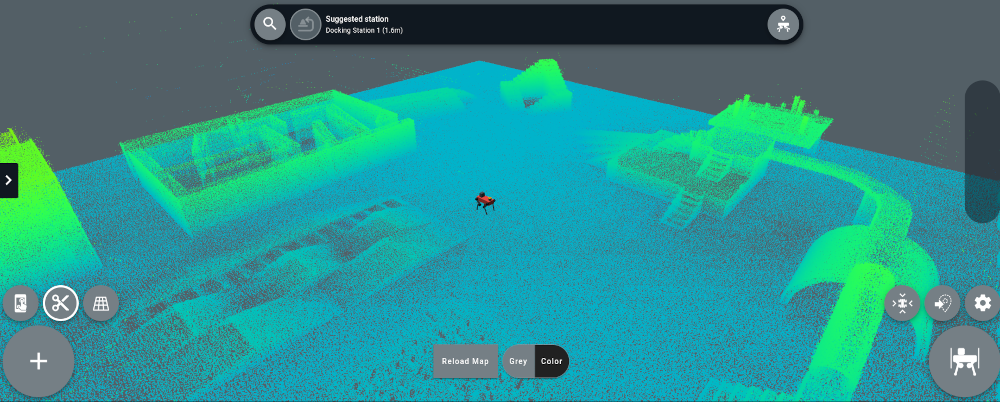
Points are colored using an elevation-based gradient (rainbow or grayscale), from lowest to highest, helping you quickly distinguish between different levels and structures. This provides valuable context when viewing environments from a distance and makes it much easier to identify floors, platforms, and assets.
A new clipping plane feature is enabled by default, which allows you to slice the map view to hide portions above or below a certain height. This reduces visual clutter and makes it easier to work with waypoints and points of interest. For example, you can remove ceilings, isolate a single floor level, or work more precisely in complex areas. Raise the clipping plane to reveal more above, or lower it to hide points above the selected height. The clipping centers around your camera view and can be repositioned or disabled to restore the full map view.
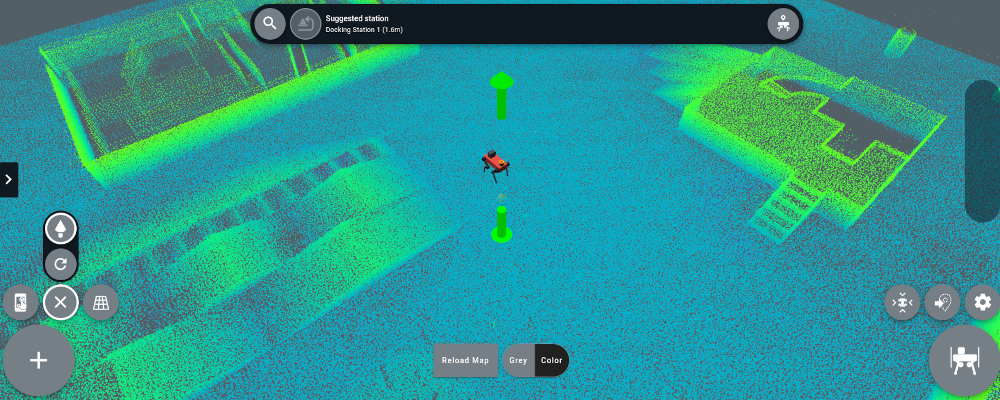
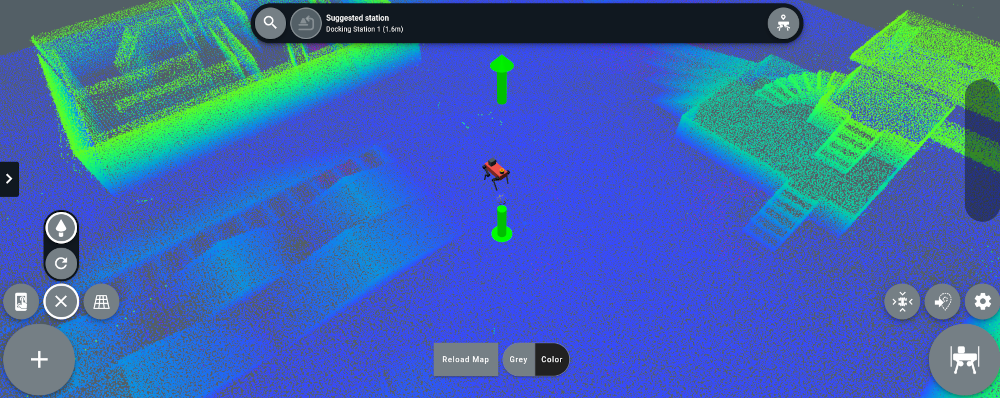
The clipping feature can be turned on and off using the scissors icon in the app’s bottom left corner.
Additionally, panning and tilting are now locked to the horizontal plane, making it easier to move through your map. There’s also a new vertical slider that adjusts the camera view up and down.
For existing environments created before this release, a HiFi map will be generated automatically the first time you open the environment after upgrading. Depending on your map size, this might take several minutes. You must save the environment after it’s fully loaded to avoid regenerating the map each time you open it. For new maps created after this release, the HiFi map is generated and saved automatically.
For more information, see Maps in the Operator’s Manual.
Regions of interest in acoustic video streams
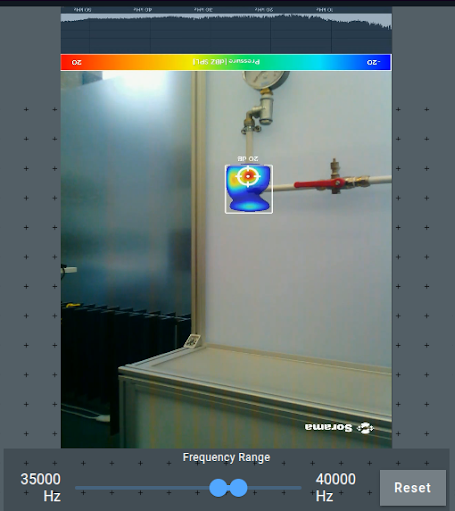
In the ANYbotics Field Operator app, you can now draw a rectangle directly in acoustic video streams to define a region of interest (ROI) for focused acoustic analysis. This allows you to concentrate on a specific area and improves detection quality by reducing background noise. To define a region of interest, draw a rectangle over an area while video streaming from the app. A bounding box appears, highlighting the specified ROI.
With this update, sensitivity levels have been replaced by a noise reduction slider for acoustic video streams. You can adjust noise reduction in real time while viewing the stream and combine it with ROI selection for more precise analysis.
Note: In Data Navigator, you can configure fixed regions of interest for acoustic imaging POIs (Partial Discharge, Leak, and Mechanical Anomaly Detection). See Set up views in the Data Navigator User Guide.
New features – Data Navigator
Configurable point of interest views
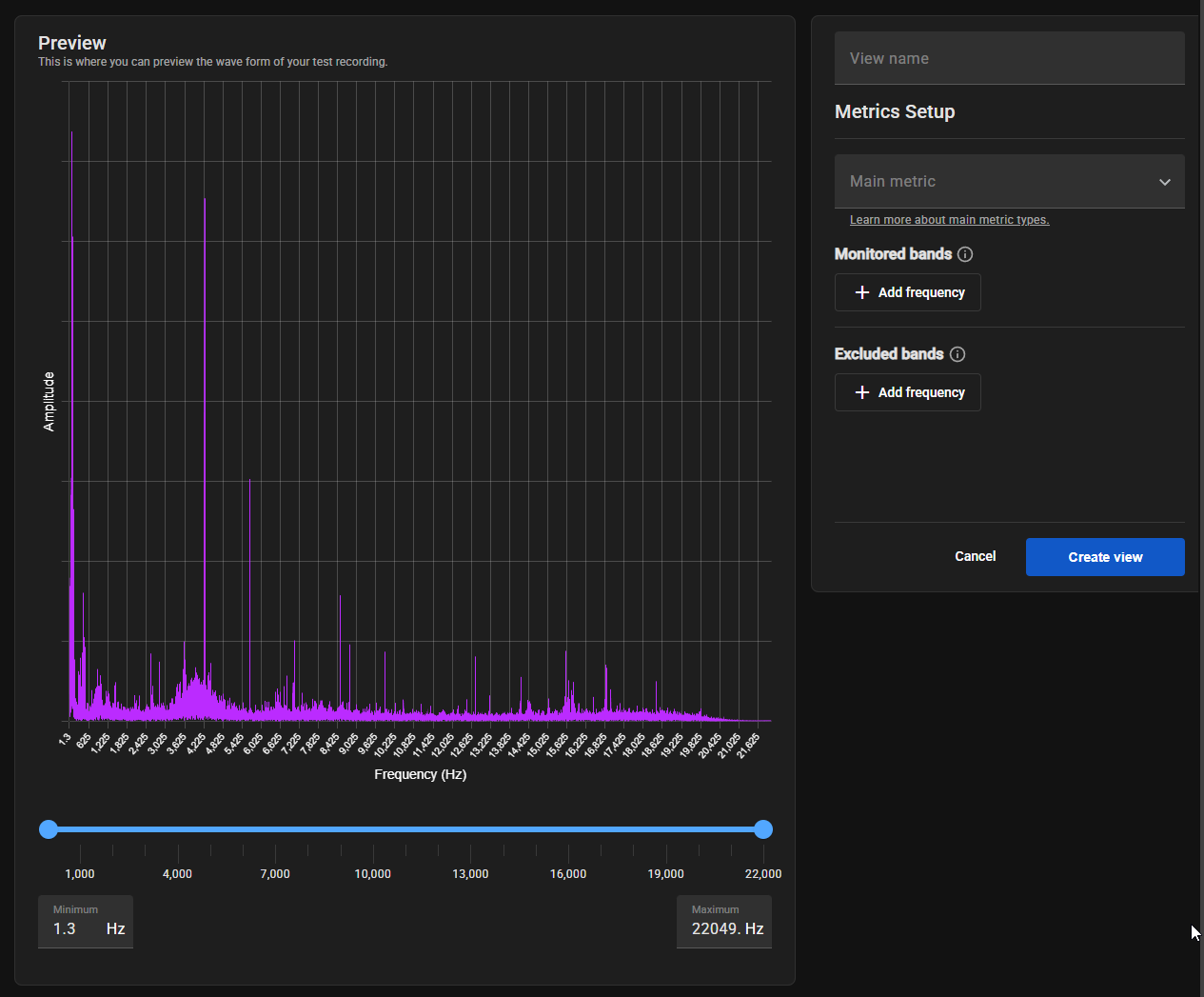
You can now create multiple “views” for acoustic and thermal points of interest (POIs), with each view defining its own metrics, regions of interest, and alert thresholds. This feature allows you to track and analyze the same inspection data in different ways. For example, you could create a view that tracks maximum temperature and another that tracks median temperature for the same thermal inspection point.
When no metrics are configured for a point of interest, you’ll see a Set Up Metrics button in the POI’s Over time results section. Each saved configuration creates a new view that appears as a tab below the POI’s inspection summary. These views can be renamed, archived, or set as the main view using the three-dot menu on each tab. When you edit a view, the system creates a new version while preserving the original view’s configuration and all of its historical data. Archived views remain accessible but stop updating with new inspection data.
The metrics that you can configure depend on the inspection type. For example, for frequency analysis inspections you can configure monitored bands, excluded bands, and the main metric by which the frequency is analyzed (e.g., signal-to-noise ratio or spectral spread), while acoustic imaging inspections support configurable regions of interest.
For more information, see Set up views in the Data Navigator User Guide.
Alert configuration
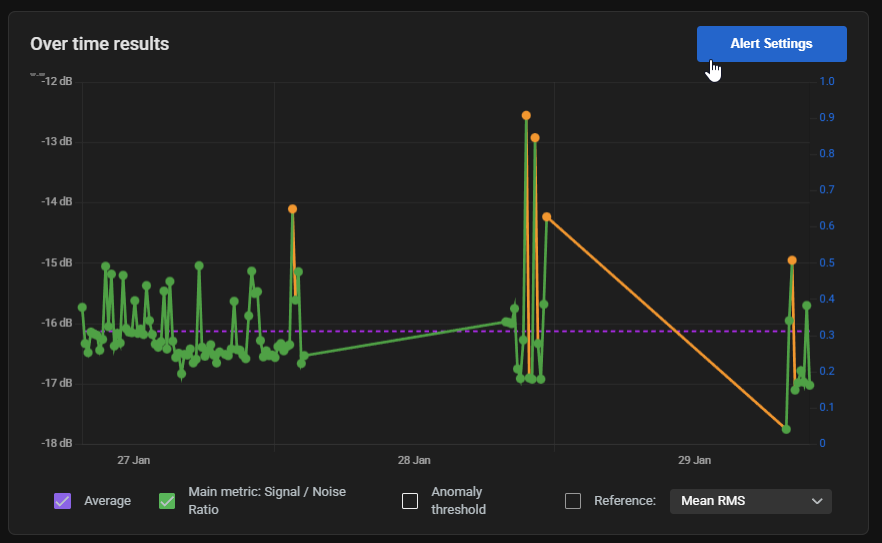
After setting up a point of interest view, you can configure alert thresholds to be notified when metrics exceed acceptable operating ranges. In the Over time results section in Assets Manager, click Alert Settings in each view to define minimum and maximum thresholds. These thresholds apply only to future inspections, not retroactively to historical data.
For more information, see Configure alerts in the Data Navigator User Guide.
Enhanced thermal inspection capabilities
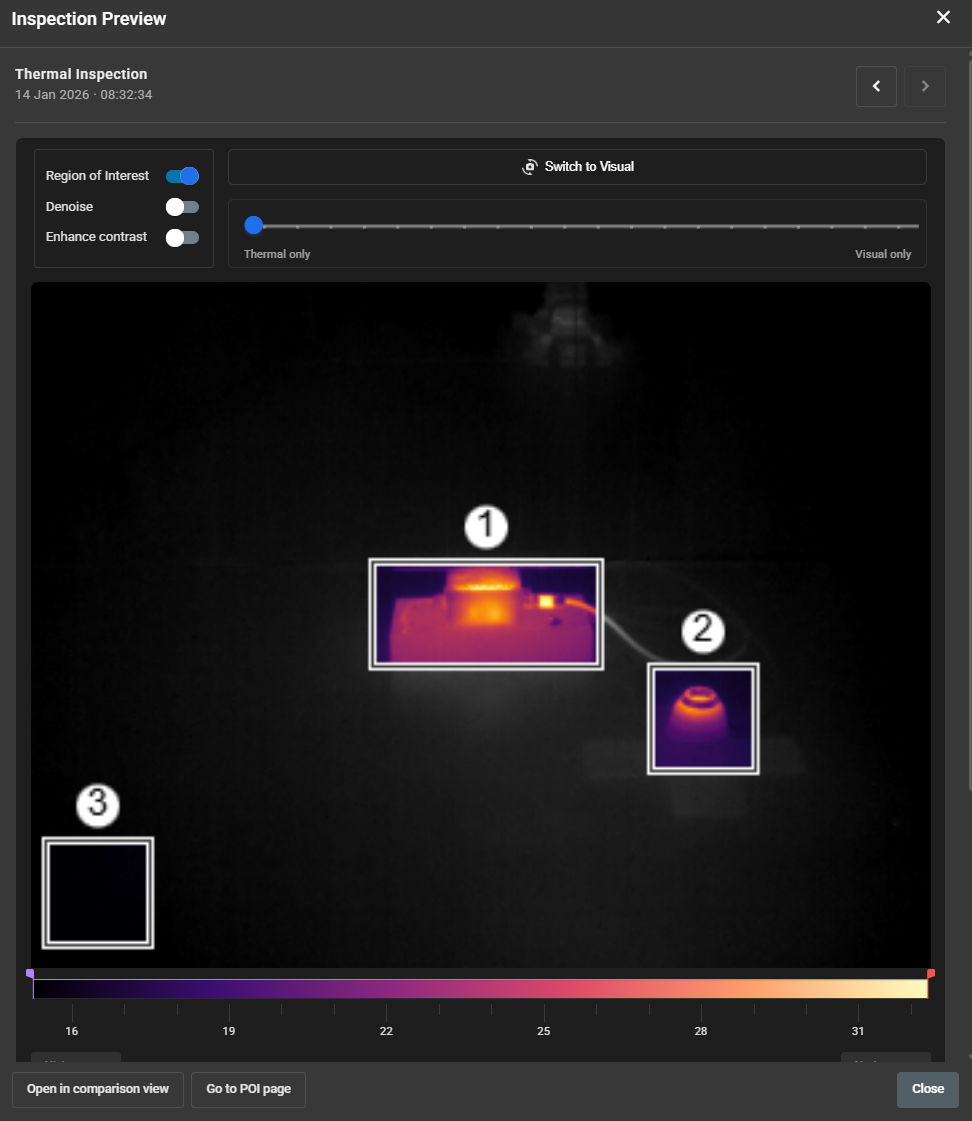
Thermal inspection previews now include tools to help you analyze temperature data more effectively. New denoise and enhance contrast toggles allow you to reduce image noise and improve temperature variation visibility. A thermal-visual slider lets you blend thermal images with RGB photos, making it easier to identify components. The processing order applies denoise first, then color enhancement.
For more information, see View inspection previews in the Data Navigator User Guide.
Asset structure panel
Assets Manager now has a navigation panel that provides quick access to your complete asset hierarchy. The panel slides out when you hover the cursor over the Asset Manager icon and shows your full asset and POI structure. From this panel, you can:
- Create new sub-assets
- Expand and collapse folders to navigate through your asset structure
- Click any asset or POI to open it immediately
- Pin the panel to keep it open while you work
- Use the three-dot menu to manage asset details (e.g., name, criticality level, and external ID)
Reorganized settings
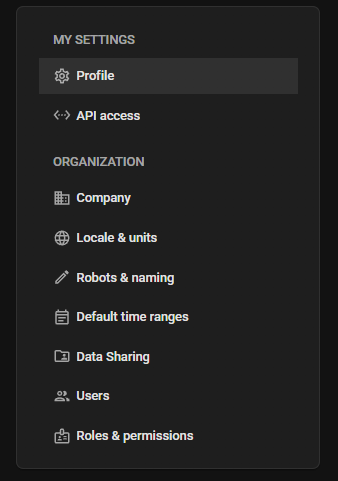
Settings has been moved to Data Navigator’s top-right corner and is now organized by personal and organizational settings. My Settings covers personal preferences like profile information and API tokens, while Organization handles company details, robot naming, default time ranges, data sharing preferences, user management, and roles and permissions. Access to organization settings is controlled by appropriate permissions. As part of this update, Roles & permissions has been redesigned for a better user experience.
For more information, see Settings in the Data Navigator User Guide.
Additional Data Navigator updates in this release
- When resolving an anomaly in Assets Monitor, you can now choose to resolve the individual anomaly or all anomalies recorded at that POI during the latest inspection.
- Navigating through inspection previews now adapts based on where you opened the preview, making it easier to review relevant data.
- Moved the Criticality drop-down to the asset header in Assets Manager. Previously, this drop-down was located in the About section.
- Updated table design to improve ease of use and align with accessibility standards.
- You can now filter Mission Scheduler by robots and missions.
- Camera stream labels in Mission Controller have been updated for clarity.
- When exporting asset data, you can now include data from its first-level sub-asset via the new Include sub-assets data checkbox.
- Added new checkboxes to filter data in the Over time results graph (e.g., averages, anomaly thresholds, and ROI metrics). Additionally, threshold lines for anomalies now appear as red bars on the graph to improve anomaly visibility.
- When setting up asset comparisons, points of interest now appear as expandable folders with checkboxes to select configured views.
Introducing
Mechanical Anomaly Detection
This release introduces mechanical anomaly detection, a new inspection type that enables you to monitor the health of rotating equipment. When equipped with the acoustic imager, ANYmal can now detect early warning signs of mechanical issues in motors, pumps, fans, and other rotating machinery before they lead to equipment failure or unplanned downtime.
Mechanical equipment produces continuous sound patterns during normal operation. When components begin to degrade (e.g., bearing wear, misalignment, or lubrication issues) these acoustic signatures change. ANYmal uses its acoustic imager to measure ultrasonic sound levels and track these changes over time, alerting you when deviations indicate developing problems.
For more information, see the new Partial Discharge & Mechanical Anomaly Detection Guide.
Improvements
Temperature management for drive protection
ANYmal now has preventative behavior to protect its drives from overheating. This feature requires a drive firmware update and helps preserve the robot’s hardware by automatically responding to increased drive temperatures.
The robot will now pause and cool down when drive temperatures reach certain levels. At moderate temperatures (100 °C), the robot waits before starting tasks like climbing stairs or crawling. At higher temperatures (110 °C), it pauses at the next available waypoint. If temperatures rise to 115 °C, ANYmal will request operator confirmation before lying down. At 120 °C, the drives will automatically disable to prevent hardware damage.
Enhanced thermal and acoustic imaging
Thermal image events in the API and Data Navigator now include the distance to the target, enabling better RGB-thermal contextualization for more accurate analysis.
Increased camera and sensor reliability
Made a number of updates to the zoom and thermal cameras:
- The cameras are now more robust in recovering from failures or temporary disconnections, reducing downtime during inspections.
- Added a thermal camera calibration procedure to compensate for non-uniformities in thermally dynamic scenarios, ensuring more consistent temperature measurements across varying conditions. See Supplemental flat field correction in the Operator’s Manual.
- The Sorama driver can now automatically recover and power-cycle if the device becomes unresponsive, maintaining acoustic imaging availability.
- In situations where LED illumination might interfere with thermal inspections, the payload LED can now be disabled during thermal inspections through configuration settings. This gives you more control over inspection conditions based on your specific requirements. For configuration information, see Software Release Notes 26.01.
- The thermal camera can now recover from low input voltage conditions without requiring a full system reboot, improving operational continuity.
Enhanced locomotion and navigation
Improved the robot’s robustness when standing up from the Crawl motion state, allowing for more reliable transitions between motions.
Additionally, global rotation optimization is now enabled by default, significantly improving the robot’s navigation efficiency and predictability. With this enhancement, ANYmal makes fewer unnecessary rotations along paths, at navigation goals, and in narrow corridors, allowing for smoother movement through tight spaces and more consistent orientation behavior. Existing waypoint setups should require fewer refinements after upgrading to this release. If needed, this behavior can be disabled through configuration settings. For configuration information, see Software Release Notes 26.01.
Changes
Mission editor enabled by default
The Mission Editor is now enabled by default when you update to this release, providing a convenient way to manage your missions. For more information, see Edit missions in the Operator’s Manual.
Sorama firmware update
For customers using the acoustic imager, the firmware has been updated to Version 2.20.0, which fixes an orientation issue with regions of interest. When you upgrade to this release, put the robot in Sleep operational mode, then run anymal-firmware-sorama on the locomotion computer (LPC). For more information, see Upgrade the Sorama firmware in the Operator’s Manual.
Asynchronous environment loading
Environment loading is now asynchronous, making switching between environments faster and more reliable. Previously, changing to a large environment could cause connection errors and interruptions. Now, environments load smoothly in the background while you work.
Other changes in this release
Zoom camera videos are now recorded in H.264 instead of H.265 by default.
Fixes
- Fixed an issue where thermal camera inspections could fail if the zoom camera was offline.
- Fixed an issue where the thermal camera driver could get stuck.