
Release 26.07 is now available for Data Navigator! We’ve been hard at work developing new features and enhancements to optimize your ANYmal experience. Here, you’ll find detailed information about what’s new in this release.
Before you begin: This release is available for Data Navigator instances deployed in the ANYbotics Cloud.
New features
Visual Inspection Intelligence
Visual Inspection Intelligence (VII) automates visual data analysis, processing inspection images to help you monitor assets, collect metrics, and detect changes in your operational environment. VII is composed of three functionalities: change detection, instrument readout, and object detection.
Important: To use VII, ensure the data sharing toggle is enabled under Settings > Data Sharing.
CHANGE DETECTION
Detects physical changes by comparing inspection images against an established baseline. Ideal for spotting leaks, housekeeping issues, corridor obstructions, or open/closed valve statuses.
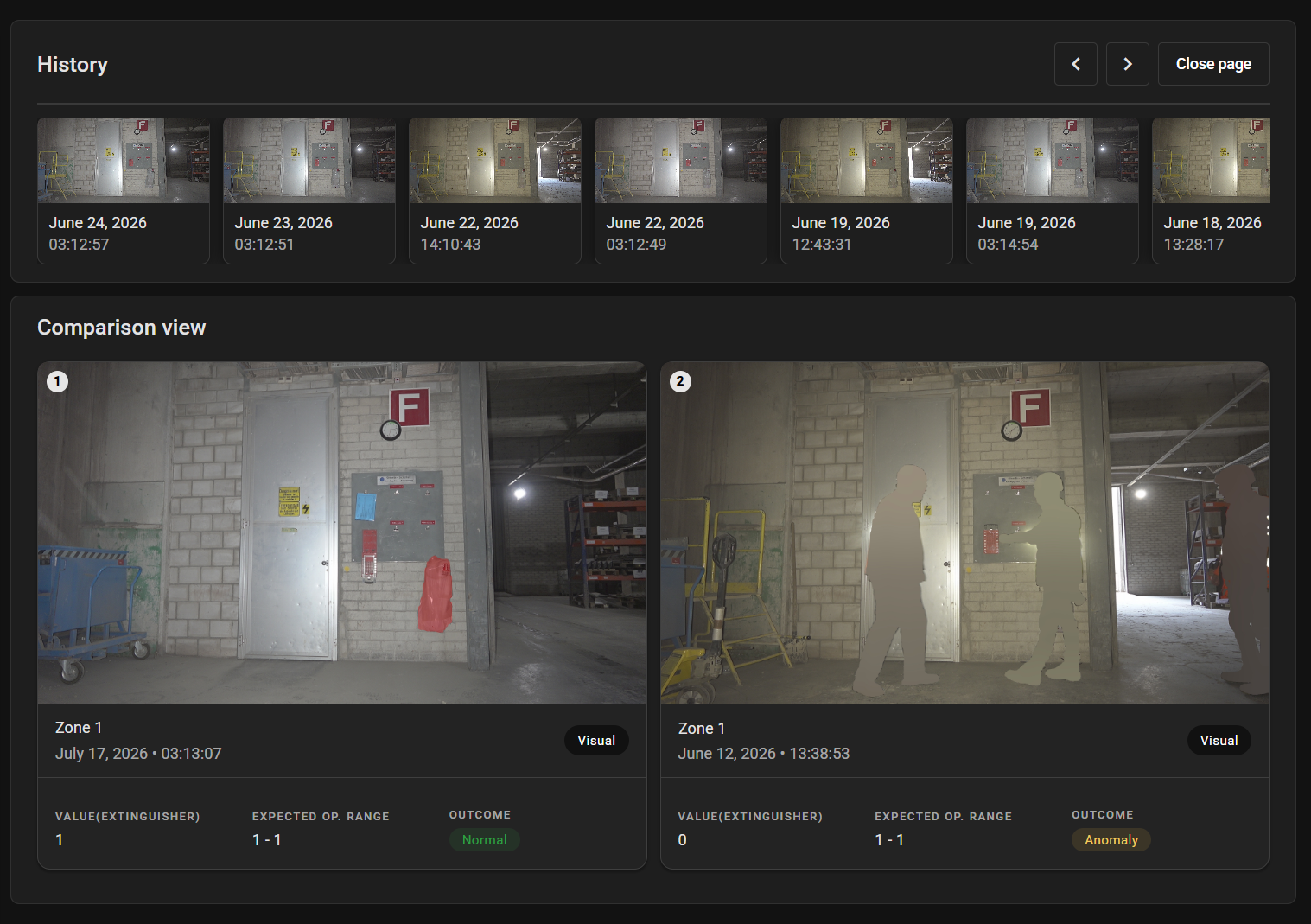
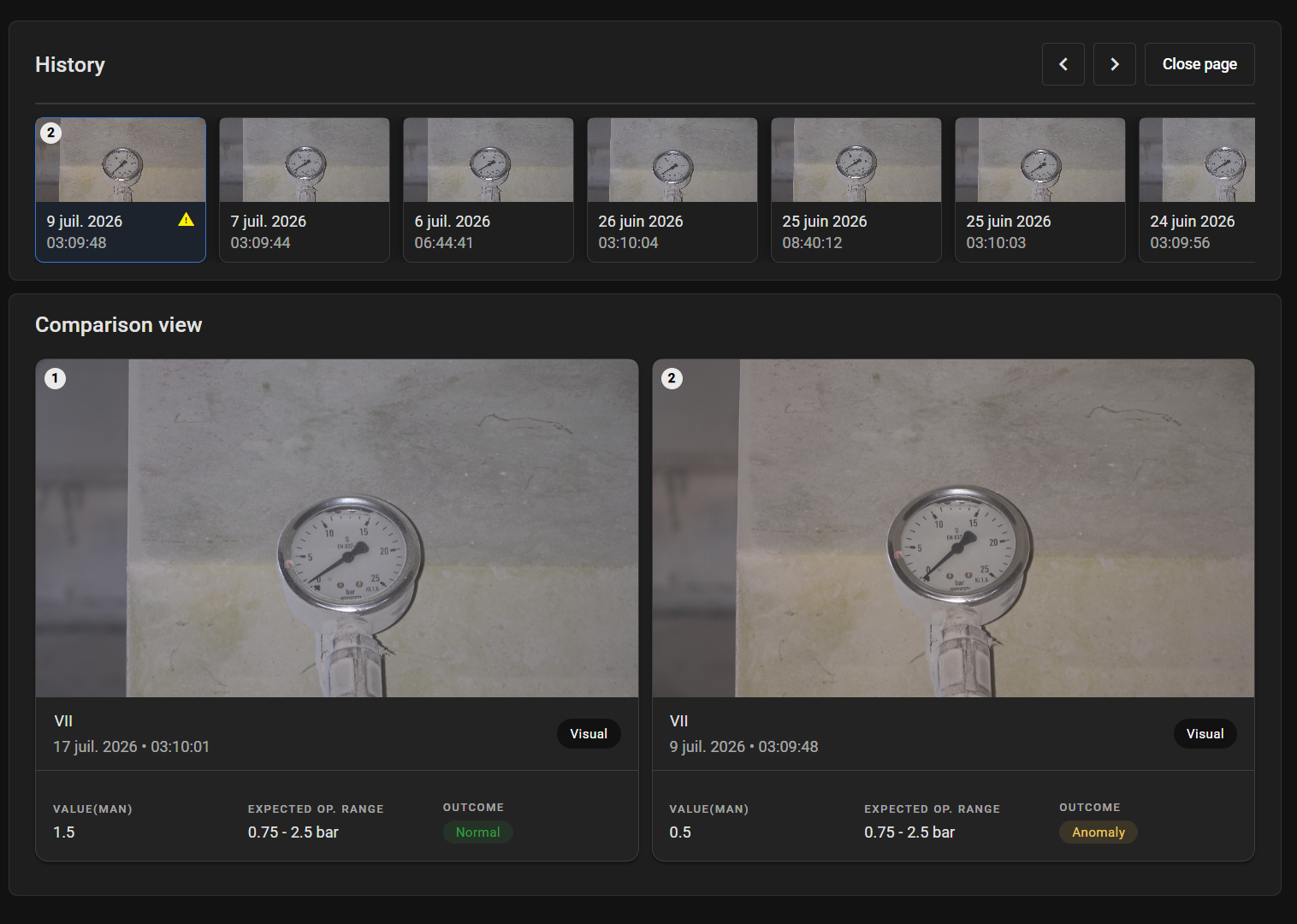
INSTRUMENT READOUT
Instrument readout automatically reads analog dials, digital displays, level gauges, and more, turning manual equipment displays into digital data. It supports configurable measurement units and operating ranges, with readings available as time series data for monitoring, analysis, and reporting.
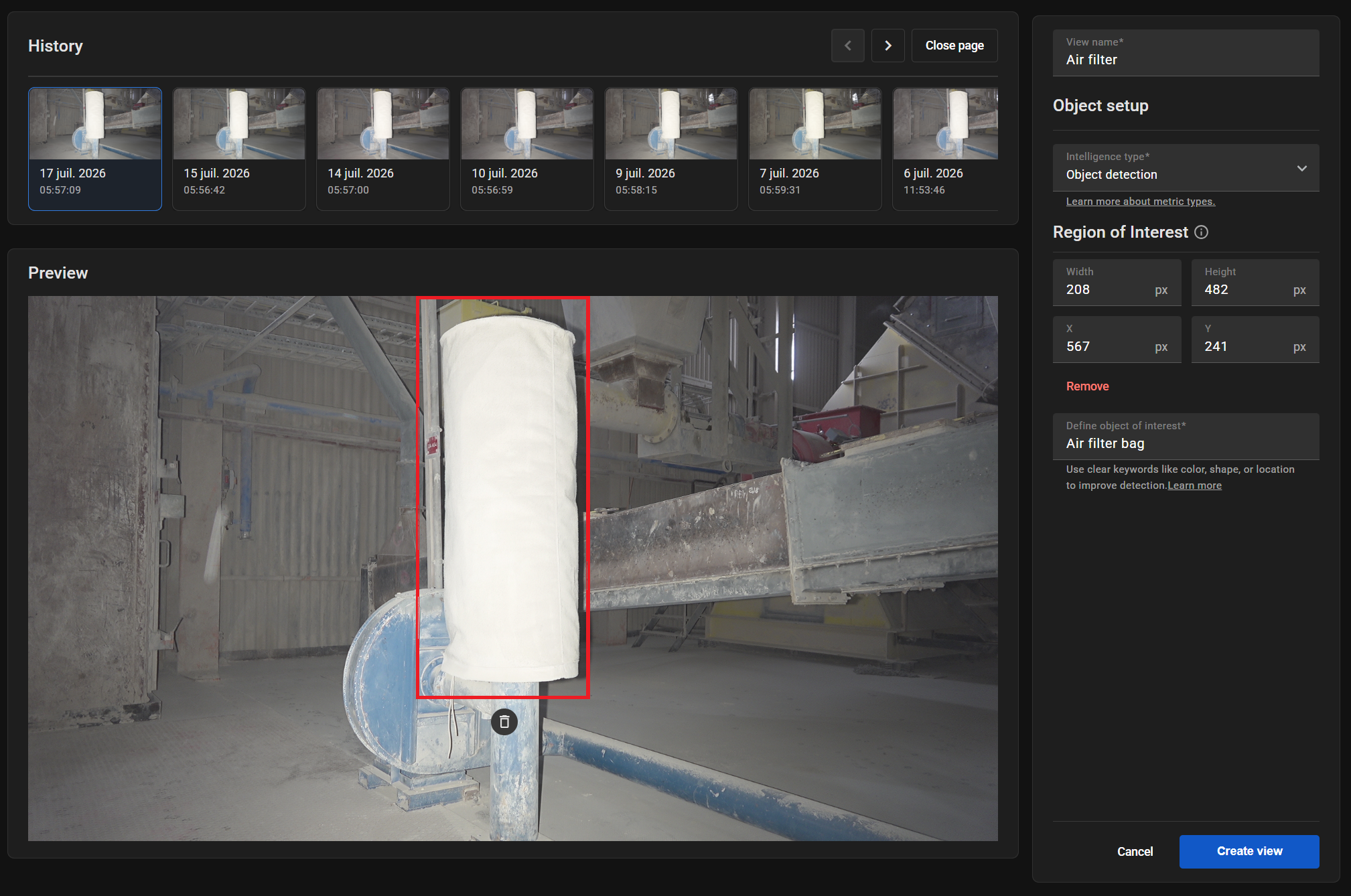
OBJECT DETECTION
Detects and identifies specific objects in a scene. It can verify presence or absence, count items, and trigger alerts when expected objects are missing. Object detection automatically verifies that critical safety equipment and assets are present and in their proper place, reducing compliance risks and verifying inventory across your facility.
For more information, see Visual Inspection Intelligence in the Data Navigator User Guide.
Notifications
Data Navigator now includes configurable alerts for assets, missions, and robots.
-
- Configurable alert types: Subscribe to specific events across assets (normal results, anomalies), missions (success, paused, failed), and robots (battery levels, safety events, localization status).
- Custom email schedules: Set active days and hours for email delivery. Notifications outside of this schedule are held until the next window begins.
- Autosubscribe: Automatically track new assets, missions, or robots as they’re added to your site.
- Volume controls: Admins can enable duplicate alert suppression, hourly email limits, and email batching under Settings > Notifications to prevent inbox overload.
- Notification Center: View live pop-ups in the bottom-right corner or review your full alert history via the new Notification Center, accessible from Data Navigator’s bottom-left corner.
For more information, see Notifications in the Data Navigator User Guide.
Additional updates
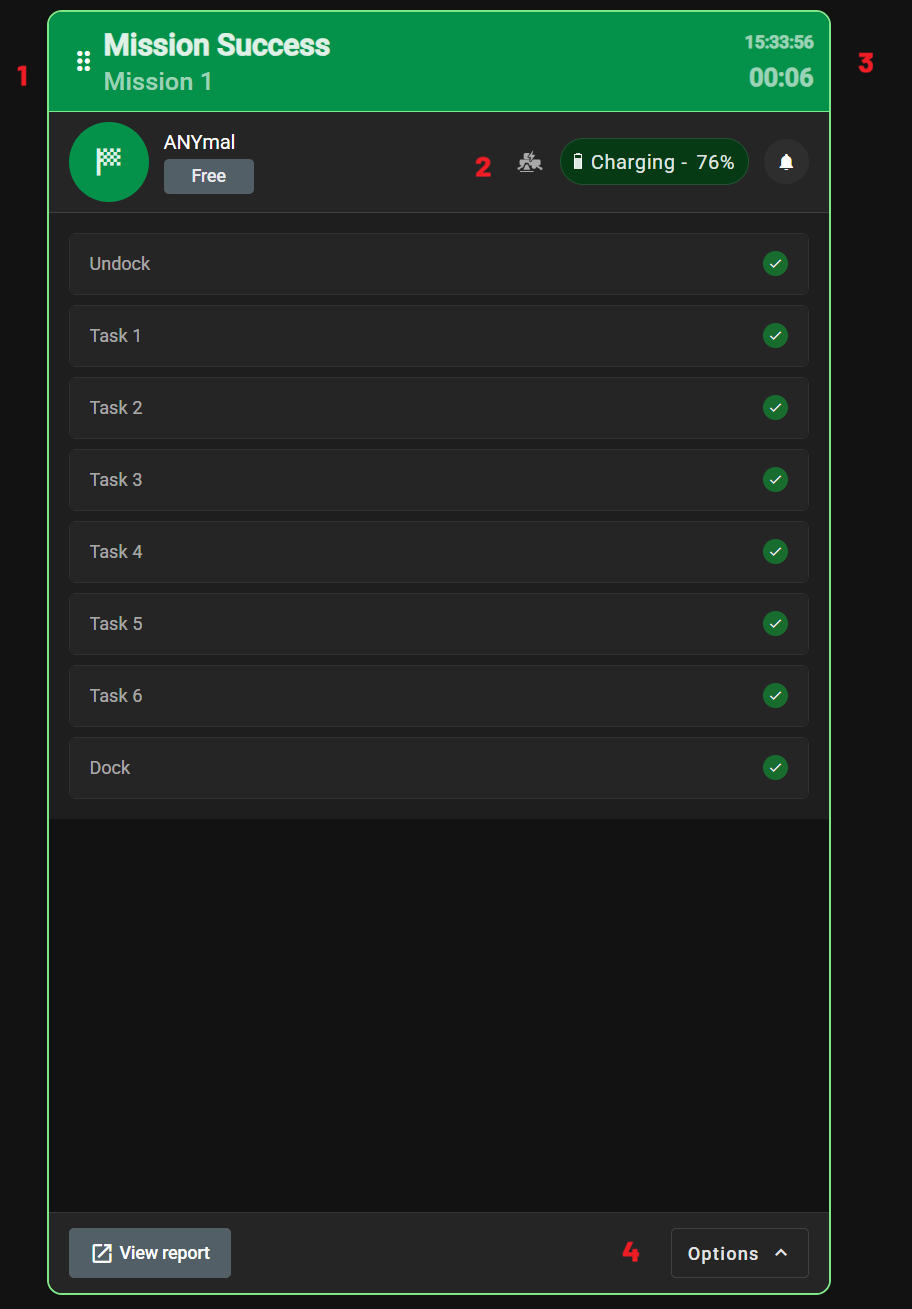
Mission controller improvements
1 ROBOT REORDERING
Added a drag handle so that you can drag and drop robots into your preferred order.
2 VISIBLE ROBOT STATES
An icon now shows the robot’s current state (e.g., docked or standing).
3 MISSION TIME
A timer shows the currently running mission’s runtime and its total duration.
4 ACTION MENU
Mission cards now include an options menu from which you can start a new mission, send the robot to the closest docking station, and resolve the robot’s protective stop (p-stop).
Important: Use caution when starting a new mission; doing so immediately cancels the currently-running mission.
For more information, see Control missions in the Data Navigator User Guide.
Interpretation type labels
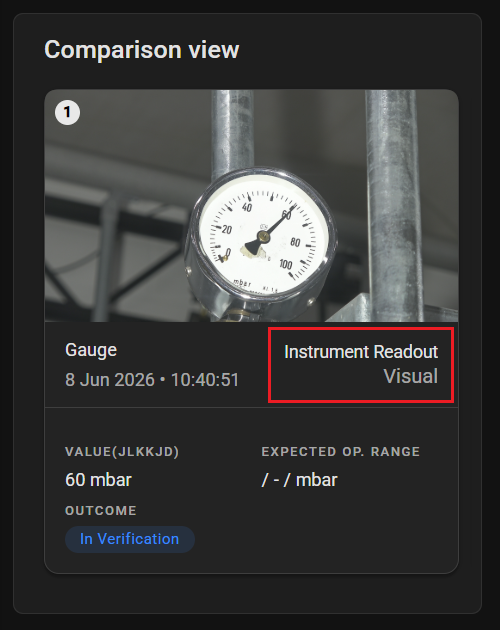
In Assets Manager, comparison views and the names of POI views now show the inspection type and interpretation type.
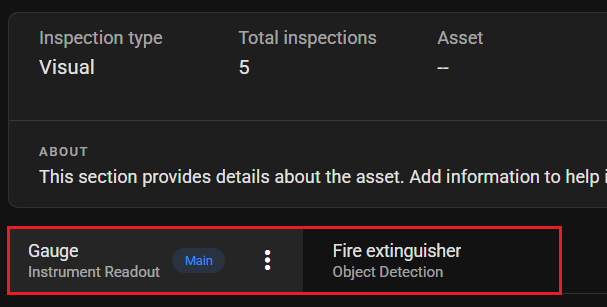
As part of this update, in the Detected anomalies section in Assets Monitor, the Inspection Type column has been renamed Interpretation Type.
User interface improvements for inspection histories
In the Inspection history table in Assets Manager, the Outcome column statuses have been updated to better reflect the event’s current state (Normal, Anomaly, Measured). Additionally, the green background for columns containing inspection result values was removed.